
YouTube to Guitar Tab
Use a public YouTube link when the source video is the easiest way to hear the part. Tabtify loads the media preview, then turns the audio into an editable guitar tab draft.
Or drag and drop here
MP3, WAV, M4A, OGG, FLAC, AAC, AIFF, MP4, WEBM, .mid or .midi
GP5, GPX, GP, MusicXML, MXL
Guitar, bass, 7-string or ukulele. Free export to Guitar Pro, MIDI, PDF, and MusicXML.
AI-Powered Guitar Tab Generation
Paste a link or file, get an editable draft, then play and export in the browser.
01
Paste a link or upload audio
YouTube, TikTok, Instagram, MIDI, or a recording.
02
AI writes the tab draft
Notes and rhythm land as an editable guitar tab.
03
Play, tweak, export
Loop hard bars. Export GP5, MIDI, PDF, MusicXML.
Use cases
What players convert here
Lesson videos
Turn a public guitar lesson section into an editable tab you can slow down, loop, and correct.
Cover performances
Convert a cover or performance video when the guitar part is clear enough to transcribe.
Riffs and solos
Use focused YouTube clips for riffs, lead lines, intros, and short sections that need tab notation.
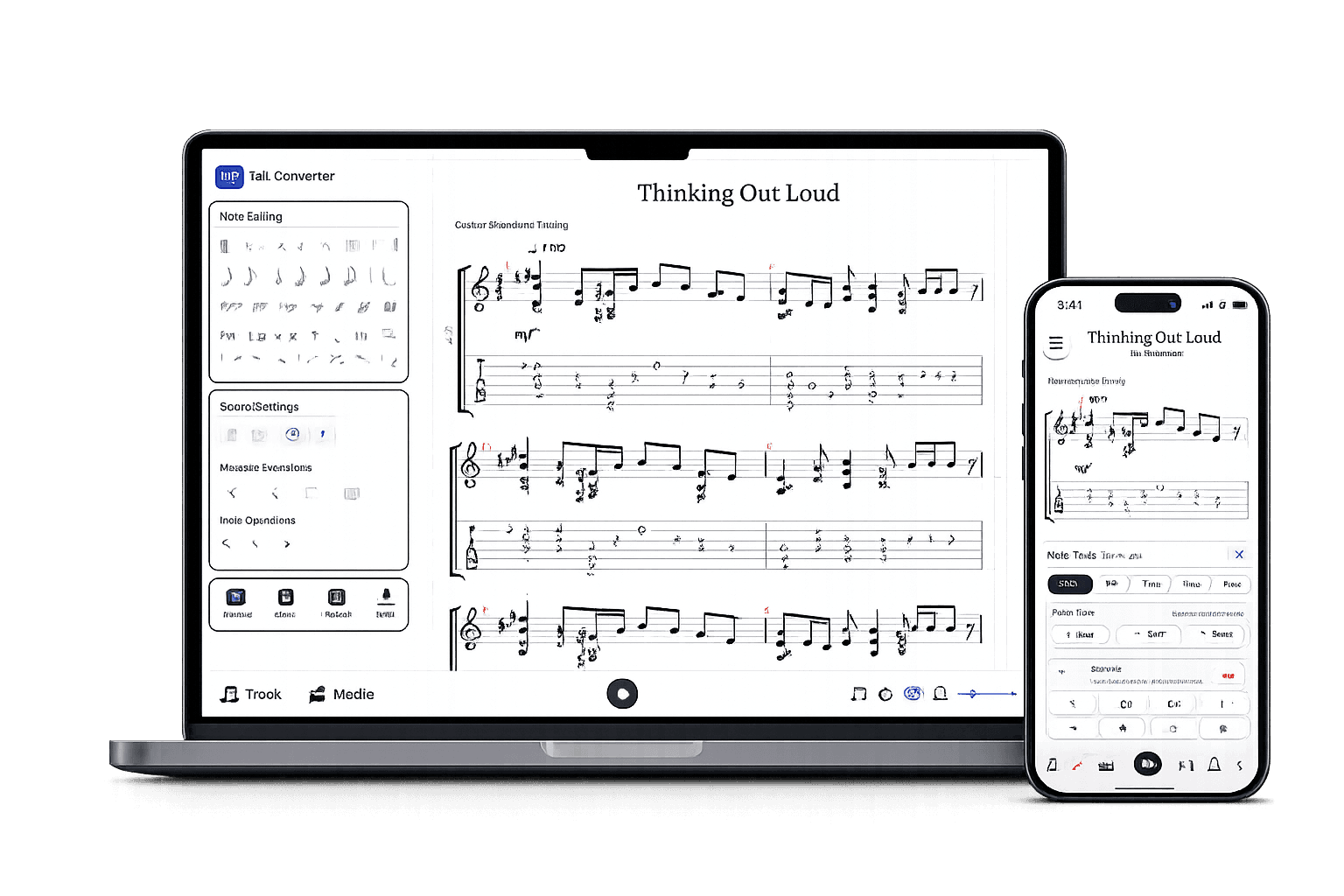
After the AI draft
A real tab editor, not a static download.
Play it back, edit any note, open GP5 or MusicXML you already have, and export in the format you need.
Edit the draft
Fix notes, timing, measures, and fret choices.
Check by ear
Play back, loop bars, match the source.
Export when ready
Guitar Pro, MIDI, PDF, MusicXML.
Guitar tabs made by Tabtify
Open any of them in the editor: play along with media sync, change a note, export to Guitar Pro or PDF.
Message In A Bottle
Machine Head
Eleven Teaching Preludes
Francisco Tárrega
A Thousand Years
Sungha Jung
Wonderful Tonight
Eric Clapton
93 Million Miles
Sungha Jung
Cosmic Girl
Jamiroquai
Air on a G String
Bach
The Scientist
Coldplay
Here Cpmes The Sun
The Beatles
Air on G-String
Sungha Jung
Hysteria (intro)
Muse
Neon
John Mayer
Frequently Asked Questions
Everything you need to know about Tabtify's AI-powered guitar tab creation platform. From audio conversion to professional export formats.
Can I convert YouTube videos to guitar tabs?
Can YouTube tabs be exported to GP5?
Why does a YouTube link sometimes fail?
Does the converter use the video image to detect frets?
Can I pull MIDI out of a video instead of a tab?
Do I need to download the video first?
How long does a conversion take?
What if the video has a full band?
Related converters
Other ways to start
Converter notes
From source to editable tab
These notes are here for setup context. The main workflow starts above in the converter, then continues in the editor.
- Preview title, channel, thumbnail, and duration before choosing setup.
- Works for public lessons, covers, riffs, solos, and practice sections.
- Generated output opens in the same editor used for audio, MIDI, and recordings.
Steps
- 01Paste the public YouTube URL into the Media tab.
- 02Confirm the detected title, thumbnail, channel, and duration.
- 03Choose the instrument setup, then adjust tuning and capo in Advanced if needed.
- 04Convert the YouTube audio into a tab, then edit and export the result.
Source quality
- Use videos where the guitar is clear and not buried under voiceover, drums, or crowd noise.
- Shorter sections are easier to check and correct than long performances.
- Choose the instrument setup, then adjust tuning and capo in Advanced if needed.
- Private, region-limited, deleted, or login-only YouTube videos may not expose usable audio.
- The converter transcribes audio; it does not read fingering from the video image.
- Long or dense videos can still need manual cleanup in the editor.