
M4A to Guitar Tab
M4A is what iPhone Voice Memos and many phone recorders save. Upload the file directly and Tabtify turns your captured idea into an editable guitar tab.
Or drag and drop here
MP3, WAV, M4A, OGG, FLAC, AAC, AIFF, MP4, WEBM, .mid or .midi
GP5, GPX, GP, MusicXML, MXL
Guitar, bass, 7-string or ukulele. Free export to Guitar Pro, MIDI, PDF, and MusicXML.
AI-Powered Guitar Tab Generation
Paste a link or file, get an editable draft, then play and export in the browser.
01
Paste a link or upload audio
YouTube, TikTok, Instagram, MIDI, or a recording.
02
AI writes the tab draft
Notes and rhythm land as an editable guitar tab.
03
Play, tweak, export
Loop hard bars. Export GP5, MIDI, PDF, MusicXML.
Use cases
What players convert here
Voice Memo riffs
Turn a riff you played into a Voice Memo into editable tab notation.
Phone-recorded practice
Convert a practice take captured on your phone without re-recording it as WAV.
On-the-go ideas
Capture an idea anywhere as M4A, then convert it to tab back at the editor.
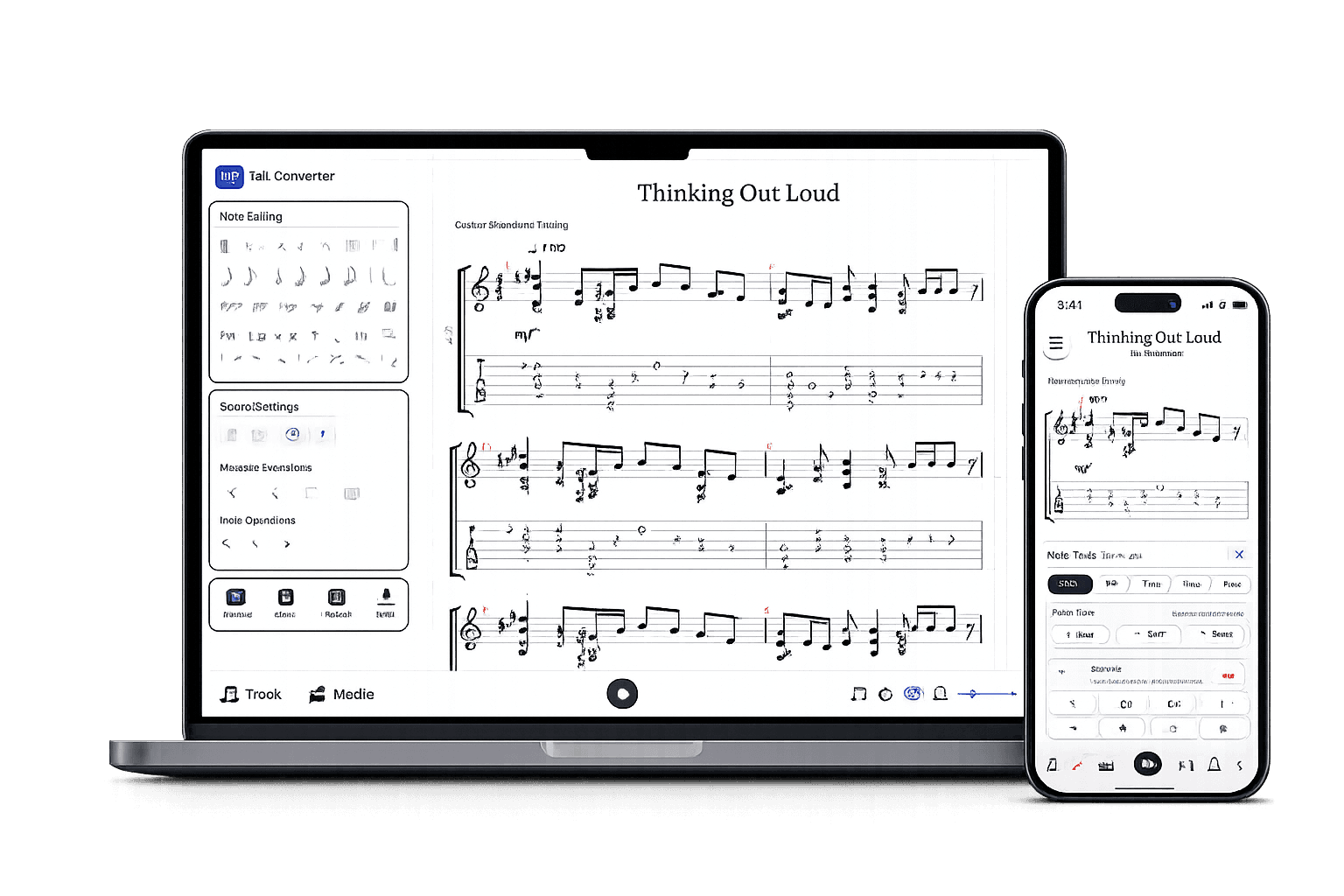
After the AI draft
A real tab editor, not a static download.
Play it back, edit any note, open GP5 or MusicXML you already have, and export in the format you need.
Edit the draft
Fix notes, timing, measures, and fret choices.
Check by ear
Play back, loop bars, match the source.
Export when ready
Guitar Pro, MIDI, PDF, MusicXML.
Guitar tabs made by Tabtify
Open any of them in the editor: play along with media sync, change a note, export to Guitar Pro or PDF.
Wonderwall
Oasis
Bohemian Rhapsody
Jeff Beck
Message In A Bottle
Machine Head
Air on a G String
Bach
Neon
John Mayer
Lithium
Nirvana
93 Million Miles
Sungha Jung
Tears In Heaven
Eric Clapton
Air from "Suite no 3"
Johann Sebastian Bach
Nothing Else Matters
Metallica
Beatles Medley
Tommy Emmanuel
november rain
Guns N Roses
Frequently Asked Questions
Everything you need to know about Tabtify's AI-powered guitar tab creation platform. From audio conversion to professional export formats.
Can I convert an iPhone Voice Memo to a guitar tab?
Is M4A quality good enough for transcription?
Do I need to convert M4A to MP3 first?
Related converters
Other ways to start
Converter notes
From source to editable tab
These notes are here for setup context. The main workflow starts above in the converter, then continues in the editor.
- Reads M4A / AAC files, including iPhone Voice Memo exports.
- Ideal for quick phone-captured riffs, chord ideas, and practice takes.
- Opens in the editor so you can fix timing and positions before you keep it.
Steps
- 01Export or save your recording as an M4A file.
- 02Upload the M4A in the Audio tab and choose the instrument setup.
- 03Run AI transcription and open the tab in the editor.
- 04Fix timing and positions with playback, then save or export.
Source quality
- Record close to the guitar and away from background noise for cleaner phone captures.
- A single-instrument M4A transcribes far better than one with talking or room noise.
- Trim the M4A to the musical part before uploading to speed up review.
- Phone-mic recordings pick up room noise and handling sounds that can reduce accuracy.
- Very quiet or distant recordings give the transcriber little pitch to work with.
- Expect some cleanup for rhythm on loosely-played phone captures.