
MP3 to Bass Tab
When you already have the song as an MP3, upload it directly instead of pasting a link. Tabtify focuses on the low end and returns an editable bass tab draft you can correct in the editor.
Or drag and drop here
MP3, WAV, M4A, OGG, FLAC, AAC, AIFF, MP4, WEBM, .mid or .midi
GP5, GPX, GP, MusicXML, MXL
Guitar, bass, 7-string or ukulele. Free export to Guitar Pro, MIDI, PDF, and MusicXML.
AI-Powered Guitar Tab Generation
Paste a link or file, get an editable draft, then play and export in the browser.
01
Paste a link or upload audio
YouTube, TikTok, Instagram, MIDI, or a recording.
02
AI writes the tab draft
Notes and rhythm land as an editable guitar tab.
03
Play, tweak, export
Loop hard bars. Export GP5, MIDI, PDF, MusicXML.
Use cases
What players convert here
Downloaded practice tracks
Turn an MP3 practice track or backing track into a bass tab you can loop and slow down.
Bass covers you recorded
Export your take to MP3 and convert it into notation for editing or sharing.
Isolated bass stems
Feed an isolated or bass-forward MP3 stem for the most accurate low-end transcription.
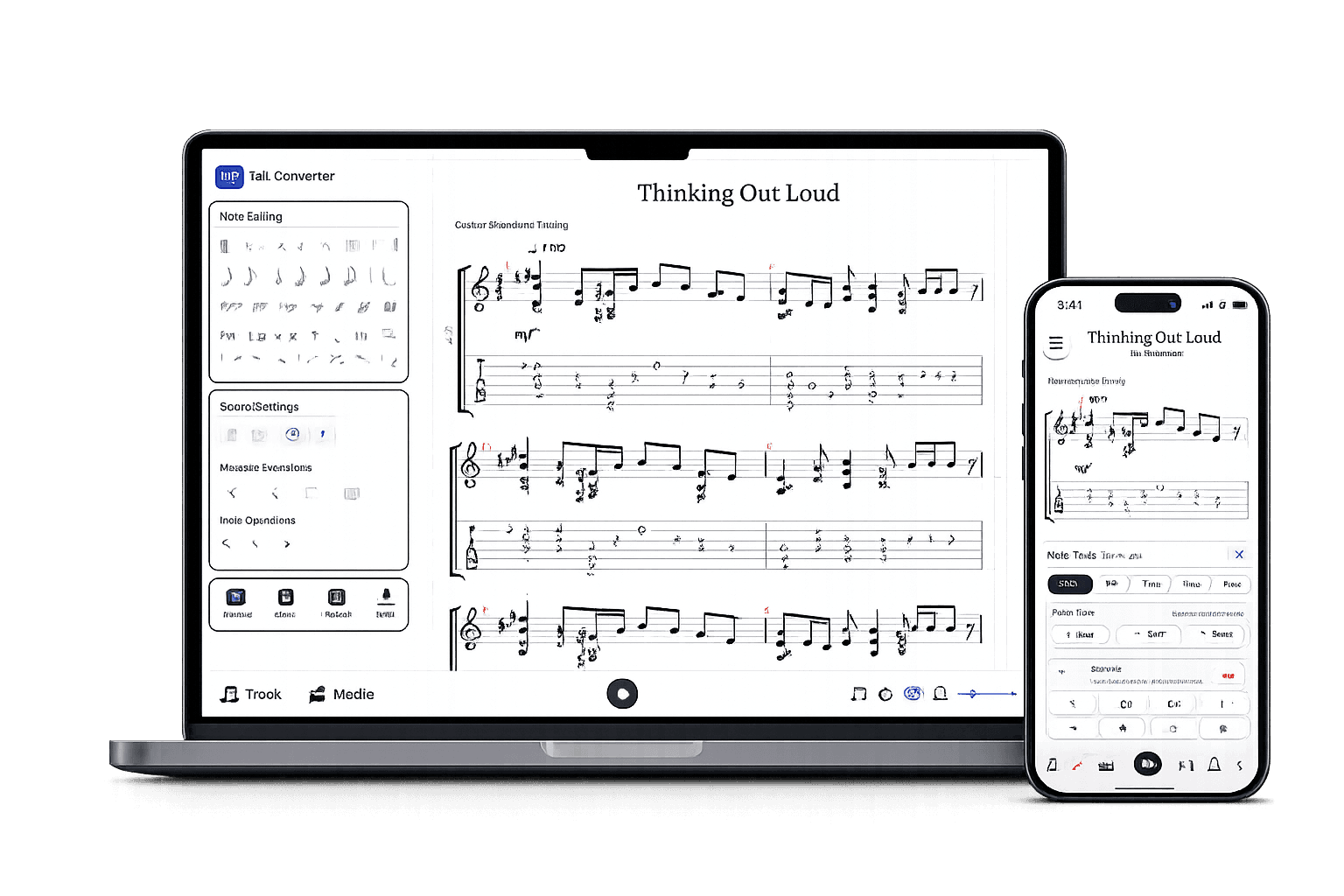
After the AI draft
A real tab editor, not a static download.
Play it back, edit any note, open GP5 or MusicXML you already have, and export in the format you need.
Edit the draft
Fix notes, timing, measures, and fret choices.
Check by ear
Play back, loop bars, match the source.
Export when ready
Guitar Pro, MIDI, PDF, MusicXML.
Bass tabs made by Tabtify
Open any of them in the editor: play along with media sync, change a note, export to Guitar Pro or PDF.
Layla
Eric Clapton
Wonderwall
Oasis
One
Metallica
Tommy the Cat
Primus
Every Breath You Take
The Police
Enter Sandman
Metallica
Fear Of The Dark
Iron Maiden
Do I Wanna Know
Arctic Monkeys
Sweet Child O' Mine
Guns N Roses
You Shook Me All Night Long
AC/DC
Hysteria (intro)
Muse
La Poderosa Hidden Track
Stick To Your Guns
Frequently Asked Questions
Everything you need to know about Tabtify's AI-powered guitar tab creation platform. From audio conversion to professional export formats.
Can I convert an MP3 straight to a bass tab?
Does MP3 bitrate affect bass accuracy?
Can I export the bass tab after converting?
Related converters
Other ways to start
Converter notes
From source to editable tab
These notes are here for setup context. The main workflow starts above in the converter, then continues in the editor.
- Reads MP3 files straight from your device - no link or streaming step needed.
- Choose 4-, 5-, or 6-string bass before transcription so low notes map to real positions.
- Cleaner results from bass-forward or isolated MP3s than from loud full-band mixes.
Steps
- 01Upload your MP3 file in the Audio tab.
- 02Choose the bass setup and 4, 5, or 6 strings; adjust tuning in Advanced if needed.
- 03Run AI transcription and open the generated bass tab in the editor.
- 04Check the groove with playback, fix positions, then save or export.
Source quality
- Use the highest-bitrate MP3 you have; heavily compressed low-bitrate files lose low-end detail.
- Bass-forward or stem MP3s transcribe more cleanly than dense full-band masters.
- Set the correct string count before conversion so notes don't jump to awkward frets.
- Kick drum and low synths in a full-mix MP3 can bleed into the bass transcription.
- Slides, ghost notes, and slap parts usually need manual cleanup in the editor.
- Very low-bitrate MP3s reduce accuracy because low frequencies are compressed away first.